


Import Excel Files for SEPA Bank Transfers and SEPA Direct Debits
You are documenting incoming and outgoing payments in Excel (.xls/.xlsx./.csv), but want to process payments using the SEPA format? Manually transferring the account data from the Excel format into transfer forms or into the online banking program takes too much of time. Let us show you how SEPA-Transfer acts like a SEPA converter - transforming Excel to SEPA!
Excel SEPA Converter
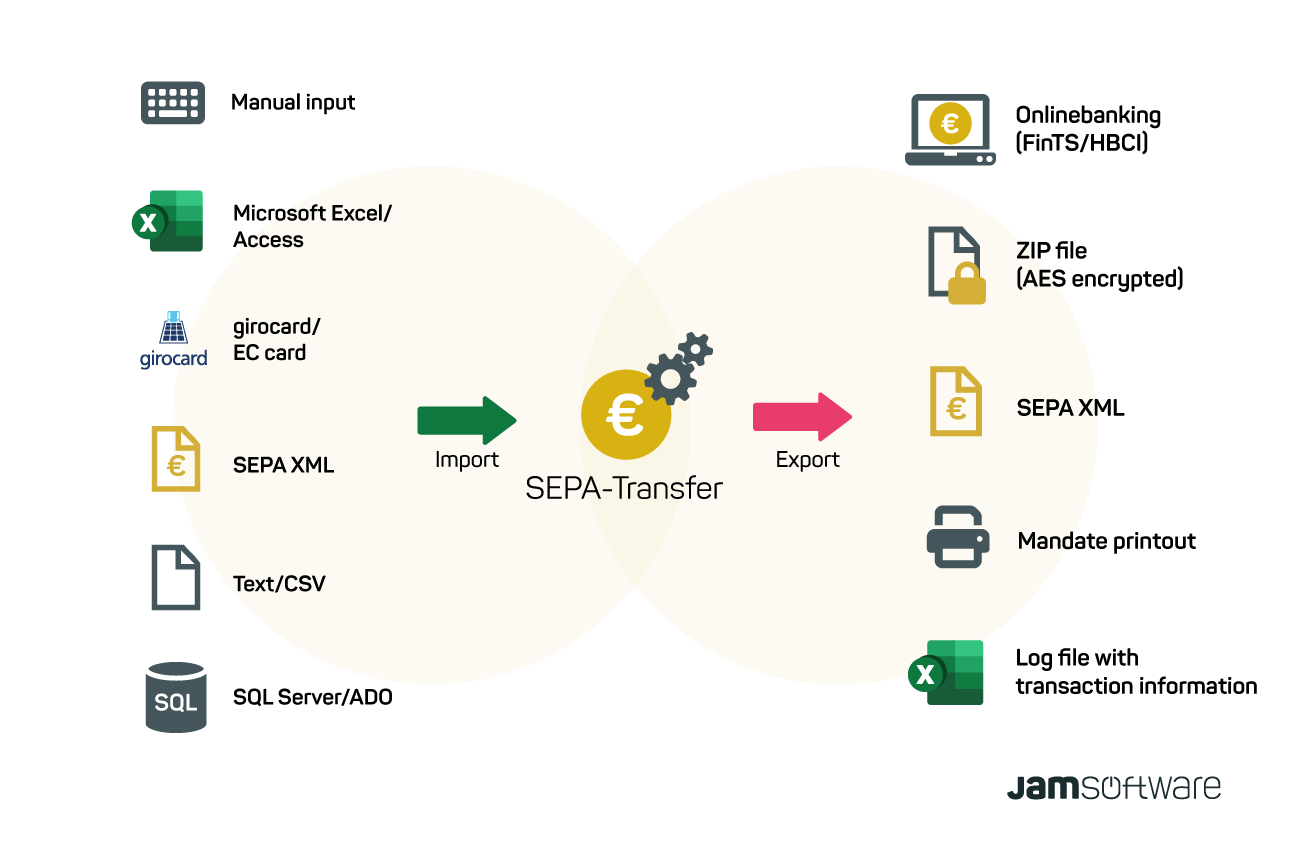
With the Excel import of SEPA-Transfer, you can import all account data from XLS files and send them to your bank in SEPA format for both SEPA Bank Transfers and SEPA Direct Debits. With just a few clicks, you can import all your account data and execute the transactions.
Tip: In the Enterprise Edition, you automate all processes via the command line! SEPA-Transfer transfers the account data from a database or Excel file automatically.
Show transcription
[On Screen: Intro: the SEPA-Transfer logo with the tagline “Transfer payment data: Excel to SEPA XML converter”.]
With SEPA-Transfer, you can easily convert payment data available in an Excel file into the SEPA XML format.
[On Screen: An Excel sheet named “Payment Data” with the columns Recipient, First name, Amount, IBAN, and Purpose.]
To do this, first prepare your payment data by naming the columns appropriately to make the import into SEPA-Transfer easier.
[On Screen: SEPA-Transfer Enterprise Edition with the Import/Export ribbon; the SEPA-Transfer Import Wizard opens with steps for file type, file path, transaction type, number of transactions, columns, error handling and start import.]
Next, open SEPA-Transfer. Select Import/Export. Click on Import File and select the desired Excel file. Select the booking type and the SEPA-Transfer account to be used. In the preview, you already get a first look at the payment data you are about to import into the program.
[On Screen: In the “Select columns” step, the Excel columns are mapped to SEPA fields such as Recipient, IBAN, BIC, Purpose, Amount, End-to-end ID, Execution date and SEPA Purpose Code, with a live data preview.]
Once you have named the columns appropriately, SEPA-Transfer takes care of the column assignment. Additional fields or errors can be easily adjusted via drop-down. Finally, click on “Execute Import” and all your payment data is stored in SEPA-Transfer.
[On Screen: The message “Import completed successfully” offers the options Send transactions, Export to SEPA XML file, and Edit transactions; the current bookings are shown in a list with an edit form (recipient, IBAN, BIC, amount, purpose, execution date).]
Check the individual entries in the current bookings for correctness. Then you can start exporting the payment data into the SEPA XML format.
[On Screen: The “Export to SEPA XML” dialog lists the transactions and offers options such as transaction type (bank transfer or direct debit), the output path and consolidation settings; a folder picker selects the output directory.]
Select Import/Export again and here “Create SEPA XML file”. Here you can select the open bookings you want to convert to SEPA, either all together or individually. Select the desired output directory and click OK. The conversion is already completed. You can now continue working with your payment data in SEPA XML format.
[On Screen: A “File export” dialog confirms that the transactions were exported successfully and offers to open the file, open the folder, or return to SEPA-Transfer; a wizard step handles invalid transactions.]
One more tip: right after the import, you can also export your payment data to the SEPA XML format with just one click. That way you save even more time with SEPA-Transfer.
[On Screen: Closing screen: “SEPA-Transfer — SEPA Payments With Just One Click”, with a “30 Days Free Trial” button.]
Upon completion of the transaction, SEPA-Transfer Enterprise Edition automatically creates an Excel log file, if desired, in which all relevant information is stored.
Where does it come in handy?
Use SEPA-Transfer as a supplement tool
Working with banking software, sooner or later you come across tools that have very comprehensive features but miss comfort functions at the same time. For example: The import of structured data apart from the SEPA XML format. With SEPA-Transfer, we offer an easy-to-use SEPA XML converter. Use SEPA-Transfer as a supplement tool to convert payment data from Excel or CSV files to SEPA XML.
Easy canteen billing process
Payment processes can be very time-consuming, especially when they are recurring tasks. SEPA-Transfer comes with great opportunities to automize those procedures. Read our case study to find out how we established an easy canteen billing process using the import functionality and SEPA mandate organization.
Save time using the command line parameters
IT administrators can include the SEPA-Transfer command line parameters into their existing scripts to automize processes even further. This allows a fast import and bank transfer of payment data without having to boot up SEPA-Transfer every time separately.
Test SEPA-Transfer as your SEPA converter for yourself
Try our 30 days trial version of SEPA-Transfer and convince yourself inside your of business environment!

SEPA-Transfer Small Business Edition